Your agent asks. You tuck it away.
Save API keys straight to Apple Keychain, without pasting them into your agent’s chat. Tuck clears your current clipboard after you paste.
Free for Mac · macOS 14 or later
Runs entirely on your Mac · no account · no server · no network access
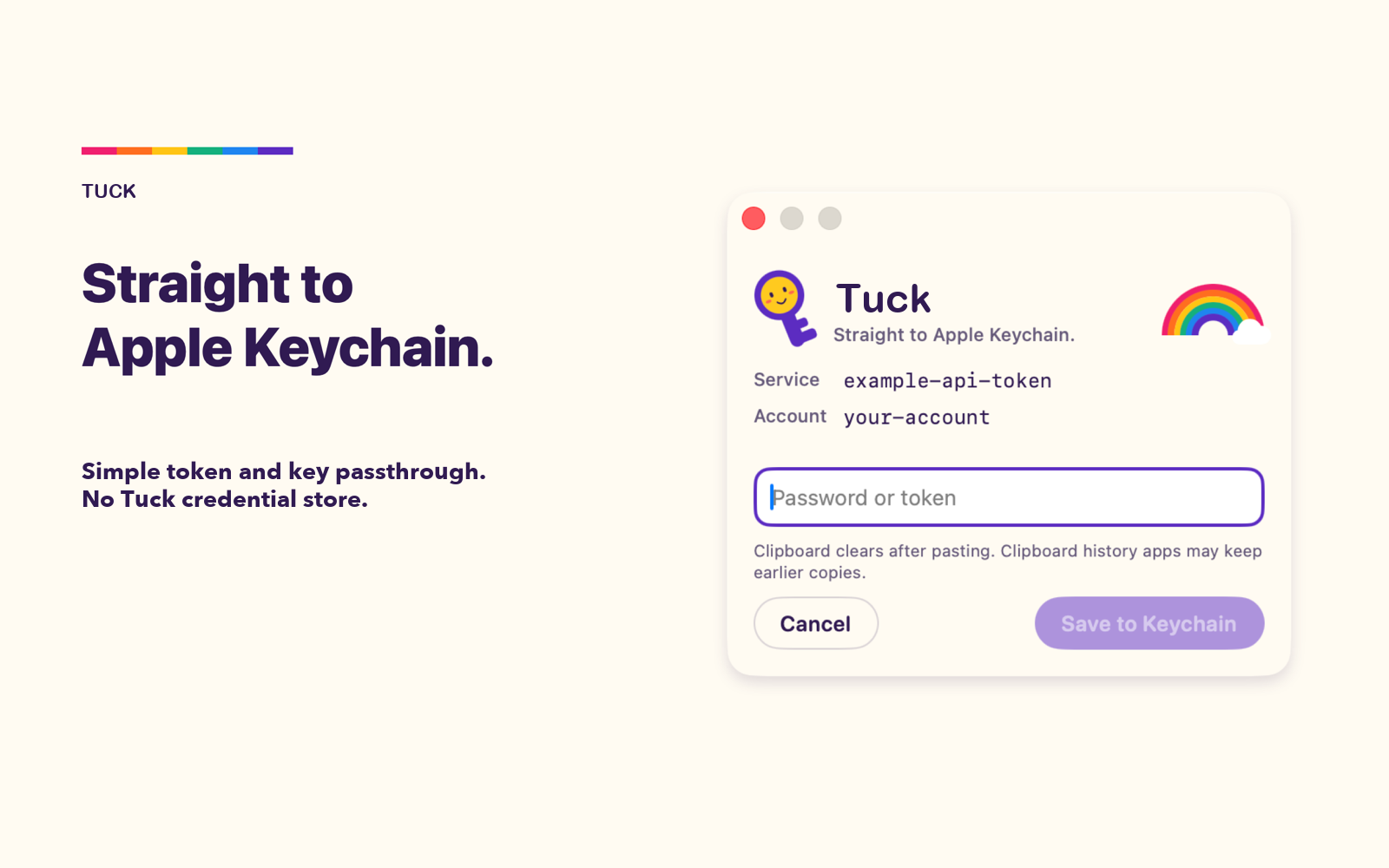


Out of your agent’s chat.
Paste into a native secure field. Your agent gets a save status; the key never enters the conversation.
Off your clipboard.
Tuck clears your current clipboard after a successful paste. Clipboard-history apps may still retain an earlier copy.
In Apple Keychain.
Stored on your Mac with Apple’s normal access controls. No Tuck account, server, or separate credential store.
What left your Mac.
Tuck is a passthrough with a friendly face. There is no account, no server, no analytics, and no way to read a key back. It holds the key only for the moment it takes to write it to Apple Keychain, with Apple's normal access controls.
TUCK · RECEIPT
Small details that matter mid-session.
Knows what a key looks like
Tuck recognizes well-known key formats and says “Looks like an OpenAI API key” as you paste. It warns when the key contradicts the destination and flags a stray trailing space. Advisory only. Save is always yours.
Counts every character
A live count while you type, and a confirmation that says how many characters were saved. Long keys that terminal prompts truncate arrive whole.
Replace on purpose
If the item already exists, Tuck asks for a second explicit Replace. Requests expire after five minutes. A second request while one is open is told to wait.
The real app.
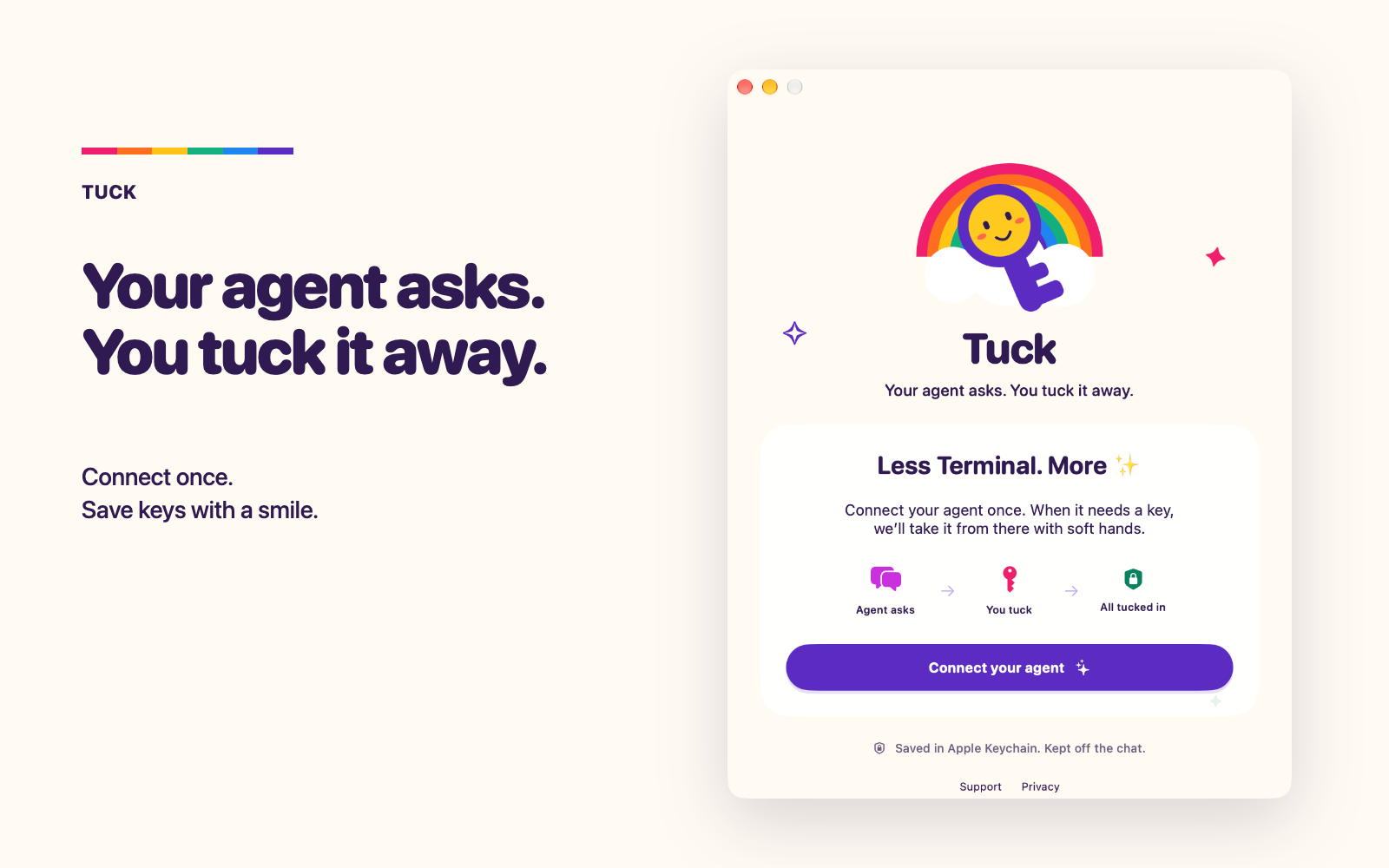
Connect your agent.
Start in the Mac app. Tuck provides the instructions for Claude Code, Codex CLI, and other local MCP agents.
Setup help →- Open Tuck.Choose “Connect your agent.”
- Give your agent the instructions.Click “Copy instructions for my agent,” then paste them into your coding agent.
- Let your agent finish connecting.It adds Tuck and installs the skill. Restart the agent if prompted.
Questions people ask.
Does Tuck connect to the internet?
No. There is no Tuck account, server or analytics, and macOS gives Tuck no network access at all: its only permission is the App Sandbox. You can check it yourself in Terminal:
codesign -d --entitlements - /Applications/Tuck.app
Does Tuck ever see my key?
Only in the native secure field while you enter it, and only for as long as it takes to write to Keychain. Tuck does not store it, log it, or send it to your agent.
Can my agent read the key back?
No. The only tool Tuck offers is save. There is no read, list or export, and the response to the agent is a status word.
Where is the key stored?
In your Mac's login Keychain, as a standard generic password item with the service and account names your agent supplied. You can see and manage it in Apple's Keychain Access.
Can my agent open web pages through Tuck?
It can suggest one page: the provider's official key page. Tuck shows the site name, says in the link's help text that the agent suggested it, and opens it in your default browser only when you click.
What does it cost, and what do I need?
Tuck is free. It requires a Mac on macOS 14 or later and a local coding agent that supports MCP and can launch a stdio server. It saves to Apple Keychain only.